
Why Laptops Slow Down and Wear Out
Most laptops don't "break" — they get slow, hot, and short on battery until using them becomes frustrating. The good news: nearly all of that is preventable. Three things age a laptop fastest: heat (which stresses internal components), a mistreated battery, and a full, cluttered drive. Manage those three and a laptop that might have felt old in two years can stay useful for five or six.
This is especially worth doing in the UAE, where high ambient temperatures make heat management even more important than in cooler climates.
1. Keep It Cool (The Single Most Important Habit)
Heat is a laptop's biggest enemy, and in the UAE's climate it matters even more. To keep temperatures down:
- Always use your laptop on a hard, flat surface. Beds, sofas, and laps block the air vents and trap heat.
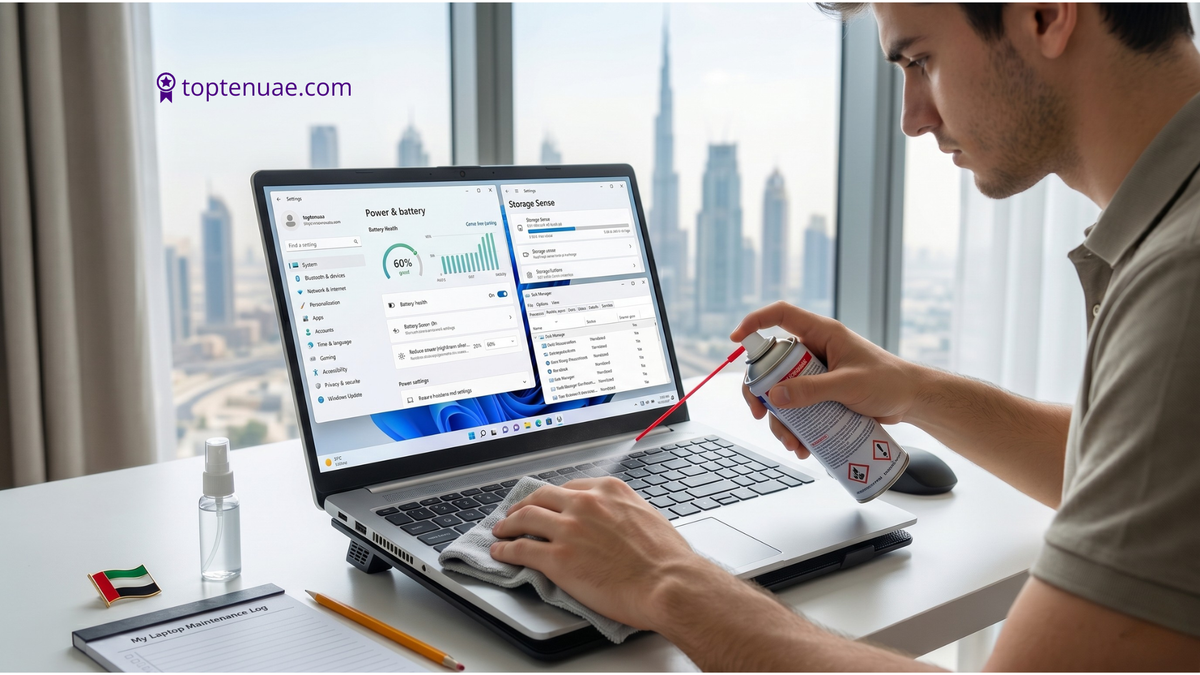
- Keep the vents clear of dust — a quick blast of compressed air every few weeks makes a real difference.
- If you do demanding tasks, a simple laptop cooling stand helps airflow.
- Don't leave it in a hot car or direct sunlight.
A cooler laptop runs faster (no thermal throttling) and its components last longer.
2. Treat the Battery Right
Modern laptop batteries wear based on how they're charged. To extend battery health:
- Avoid keeping it plugged in at 100% all day, every day. If you mostly use it at a desk, many laptops (HP, ASUS, Lenovo) have a "battery care" or "80% charge limit" setting — turn it on.
- Let it cycle naturally between roughly 20% and 80% rather than constantly topping up to full or running flat.
- Turn on Battery Saver mode when unplugged to reduce background drain.
- Lower screen brightness — the display is the biggest battery drain.
You can't stop battery ageing entirely, but these habits noticeably slow it.
3. Keep Your Storage From Filling Up
A nearly-full drive makes any laptop sluggish — and budget laptops with 128GB fill up fast. Keep at least 15–20% free:
- Uninstall programs you don't use.
- Move photos, videos, and large files to cloud storage (Google Drive, OneDrive) or an external drive / microSD card.
- Empty the Recycle Bin and clear downloads regularly.
- On Windows, run Storage Sense (Settings > System > Storage) to clean temporary files automatically.
4. Speed Up Startup and Performance
If your laptop is slow to boot or feels laggy:
- Disable startup programs: On Windows, open Task Manager (Ctrl+Shift+Esc) > Startup tab, and disable apps you don't need launching automatically.
- Close background apps you're not using — they eat RAM, which matters a lot on 4GB and 8GB laptops.
- Restart regularly instead of only closing the lid — a fresh restart clears memory.
- Remove bloatware (pre-installed apps you'll never use) that came with the laptop.
5. Keep Everything Updated
Updates aren't just nagging pop-ups — they patch security holes and fix performance bugs:
- Install Windows / ChromeOS updates when prompted.
- Update drivers (especially graphics and chipset) via the manufacturer's support app.
- Keep your browser updated, since that's where most people spend their time.
- Run a reputable antivirus (Windows Defender is solid and built in) — malware is a common hidden cause of slowdowns.
6. Clean It Physically
A little physical care goes a long way:
- Wipe the screen with a soft, slightly damp microfibre cloth (never harsh cleaners).
- Clean the keyboard with compressed air and a soft brush — crumbs and dust cause sticky keys.
- Clear dust from the vents and fan every few weeks.
- Use a sleeve or padded bag when carrying it to prevent knocks and screen damage.
When It's Genuinely Time to Upgrade
Even with great care, there's a point where upgrading makes more sense than fighting an old machine — usually when it can't run current software, the battery lasts under an hour, or repairs cost more than half a new laptop. If you're reaching that point, see our guides to the best laptops in UAE and the best laptops under 1500 AED for current options across every budget.
For more on getting the most from your laptop, see our guides on connecting a second monitor and connecting your laptop to a projector or TV.