
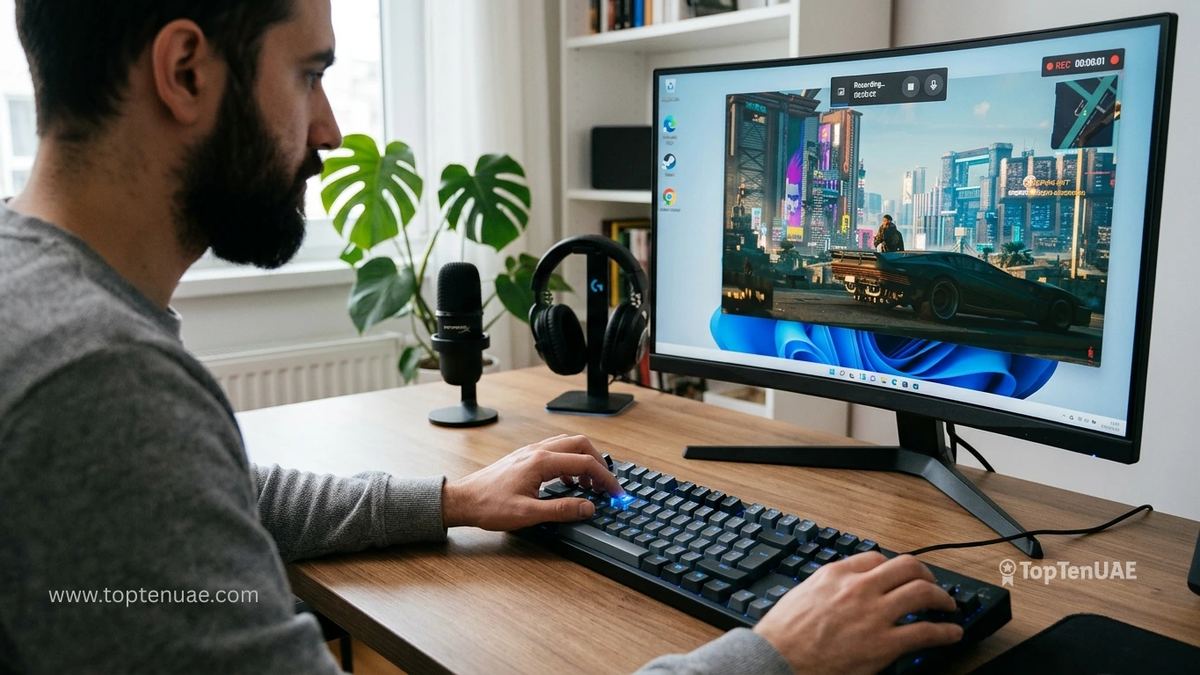
The Quick Answer
Every modern laptop can record its own screen with no downloads:
- Windows 10 / 11: Press Windows + Alt + R to start and stop recording instantly.
- Mac / MacBook: Press Command + Shift + 5, then choose Record.
- Chromebook: Press Ctrl + Shift + Show Windows and pick the record (video) option.
| Device | Shortcut Keys | What It Does |
|---|---|---|
| Windows 10/11 | Windows + Alt + R | Start or stop recording |
| Windows Game Bar | Windows + G | Open recording controls |
| Mac | Command + Shift + 5 | Open recording toolbar |
| Chromebook | Ctrl + Shift + Show Windows | Open screen capture menu |
| Chromebook Tablet | Power + Volume Up | Open capture tools |
Below: how to record with audio, capture just one window, and find your saved files.
How to Screen Record on Windows 10 & 11
Windows includes a built-in recorder called the Xbox Game Bar — and despite the name, it records any app, not just games.
The fast way: Press Windows + Alt + R to start recording immediately, and the same keys again to stop. Your video saves automatically.
The full way: Press Windows + G to open the Game Bar overlay. In the "Capture" widget, click the circular record button. You'll see a small timer while recording; click the stop button to finish.
Recording audio: In the Game Bar, click the microphone icon to include your voice, or leave it off to record only system sound. This is what makes it useful for tutorials and narrated demos.
Where it saves: Recordings go to Videos > Captures as MP4 files.
One limitation to know: The Game Bar records a single app window at a time — it can't record the desktop itself or File Explorer. For those, you'd need third-party software, but for recording a browser, a program, or a video call, it works perfectly.
How to Screen Record on a Mac or MacBook
Mac's recorder is built into the screenshot toolbar:
- Press Command + Shift + 5. A control bar appears at the bottom of your screen.
- Choose "Record Entire Screen" or "Record Selected Portion."
- Click Options to pick whether to include your microphone and where to save the file.
- Click Record to start. To stop, click the small stop icon in the menu bar at the top, or press Command + Control + Esc.
By default, recordings save to your Desktop as .mov files.
How to Screen Record on a Chromebook
Newer Chromebooks (ChromeOS) include screen recording in the same tool as screenshots:
- Press Ctrl + Shift + Show Windows (the rectangle key above 6).
- In the toolbar that appears, click the screen-record icon (the video camera).
- Choose full screen, a window, or a region, then click to start.
- Click the stop icon in the status area (bottom right) to finish.
Recordings save to your Downloads folder as WebM files.
Recording a Video Call or Meeting
All three built-in recorders capture video calls (Teams, Zoom, Google Meet) running in a window. A quick courtesy and legal note: in many situations you should let the other participants know you're recording — most meeting apps also have their own built-in recording feature that notifies everyone, which is often the better choice for calls.
Learn how to connect any Windows laptop, MacBook, projector, or TV using HDMI, USB-C, AirPlay, Miracast, and other popular connection methods: How to Connect a Laptop to a Projector or TV (2026): HDMI, Wireless & Every Method
How to Screen Record on HP, Dell, Lenovo, ASUS and Acer Laptops
If your laptop runs Windows 10 or Windows 11, the screen recording shortcuts are exactly the same regardless of brand.
- HP laptop: Windows + Alt + R
- Dell laptop: Windows + Alt + R
- Lenovo laptop: Windows + Alt + R
- ASUS laptop: Windows + Alt + R
- Acer laptop: Windows + Alt + R
These shortcuts are built into Windows itself rather than the laptop manufacturer.
How to Record a Zoom, Microsoft Teams or Google Meet Call
The built-in recording tools on Windows, Mac and Chromebook can record online meetings displayed on your screen.
Before recording:
- Make sure participants are aware of the recording.
- Check company policies and local regulations.
- Consider using the meeting platform's built-in recording feature when available.
For Google Meet, Zoom and Teams running in a browser window, the built-in screen recording tools work without installing additional software.
Screen Recording Not Working? Try These Fixes
Windows Game Bar Won't Open
- Check that Xbox Game Bar is enabled in Settings > Gaming.
No Audio in Recording
- Verify microphone permissions.
- Select the correct microphone before recording.
Chromebook Recording Missing
- Update ChromeOS to the latest version.
Mac Recording Stops Unexpectedly
- Check available storage space and screen recording permissions.
Which Method Should You Use?
- Quick clip, no editing: Use the built-in recorder for your OS — it's instant and free.
- Tutorials with narration: Built-in recorders handle microphone audio well; just enable the mic first.
- Heavy editing or webcam overlay: That's where dedicated software comes in — but for most people, the built-in tools are all you need.
If you've also been meaning to capture still images, see our companion guide on how to take a screenshot on laptop & PC.
Is Your Laptop Up to It?
Screen recording is light work for any modern laptop, but older or low-RAM machines can stutter while recording. If yours struggles, our guide to the Best Laptops in UAE covers smooth, capable options across every budget on Amazon.ae(opens in a new tab).
Related Laptop Guides
Screen recording becomes even more useful when paired with the right setup:
- Top 10 Laptop picks in UAE for video editing, content creation, and productivity.
- Extend your laptop display to keep notes and recording controls on a separate screen.
- Display your laptop to a projector or TV for training sessions and presentations.
- Learn how to capture your screen when a still image is all you need.