
The Quick Answer
If you just need the fastest method, here it is:
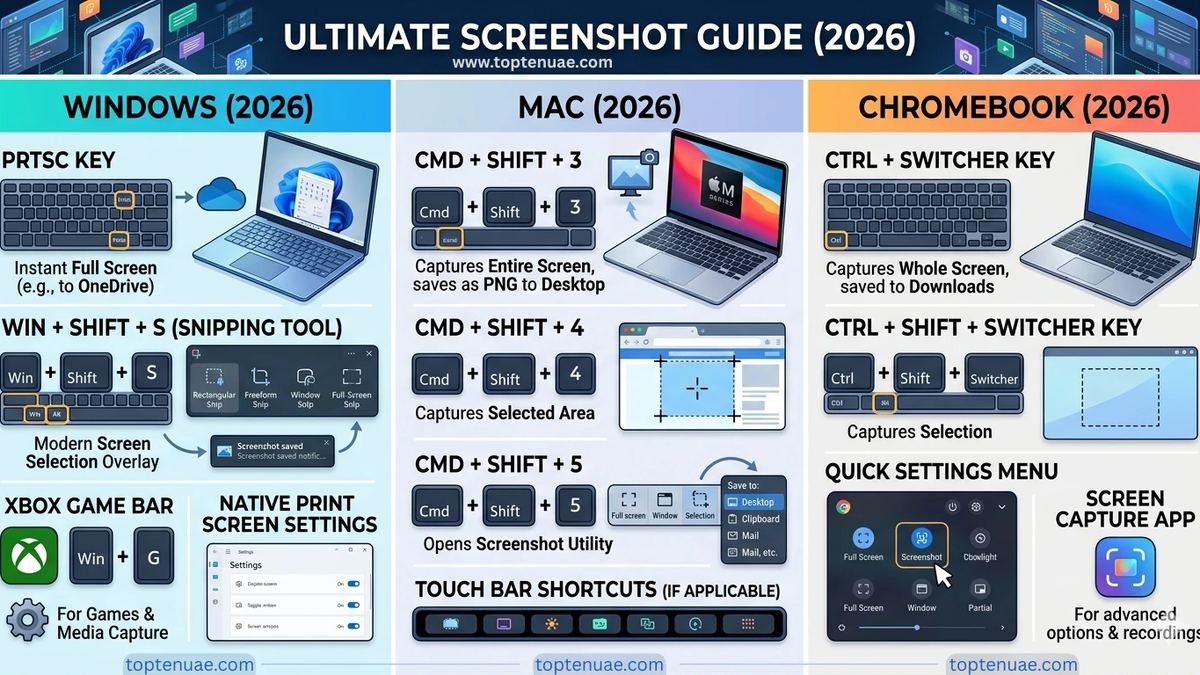
- Windows laptop or PC: Press Windows + Shift + S to snip any part of your screen.
- Mac / MacBook: Press Command + Shift + 4 to select and capture an area.
- Chromebook: Press Ctrl + Show Windows (the key above the 6).
| Device | Full Screen | Partial Screen |
|---|---|---|
| Windows | PrtScn | Win + Shift + S |
| Mac | Cmd + Shift + 3 | Cmd + Shift + 4 |
| Chromebook | Ctrl + Show Windows | Ctrl + Shift + Show Windows |
Read on for every method — including how to capture just one window, take a scrolling screenshot of a full webpage, and where each device saves your screenshots.
How to Screenshot on a Windows Laptop or PC
Windows gives you several built-in ways to capture your screen, and the right one depends on whether you want the whole screen or just part of it.
- Snip & Sketch (the best everyday method): Press Windows + Shift + S. Your screen dims, and you can drag to select any area. The capture copies to your clipboard, and a notification lets you annotate and save it. This is the method most people should use.
- Print Screen (the whole screen, to clipboard): Press PrtScn. This copies the entire screen to your clipboard — you then paste it (Ctrl + V) into an app like Paint, Word, or WhatsApp.
- Windows + Print Screen (the whole screen, saved as a file): Press Windows + PrtScn together. The screen dims briefly and the image saves automatically to Pictures > Screenshots. No pasting needed.
- Capture a single window only: Click the window you want, then press Alt + PrtScn. This copies just that active window to your clipboard — useful when you don't want your whole cluttered desktop in the shot.
- The Snipping Tool app: Search "Snipping Tool" in the Start menu for a full app with delay timers (handy for capturing menus that disappear) and basic editing.
- On HP, Lenovo, Dell, and ASUS laptops: All of the above shortcuts work identically — they're built into Windows, not the brand. On some compact laptops the PrtScn key is combined with another function, so you may need to press Fn + PrtScn.
How to Screenshot on a Mac or MacBook
Mac uses the Command + Shift combination for all screenshots:
- Command + Shift + 3 — captures the entire screen and saves it to your Desktop.
- Command + Shift + 4 — turns your cursor into a crosshair so you can drag to select any area.
- Command + Shift + 4, then Spacebar — captures one specific window cleanly, with a subtle shadow.
- Command + Shift + 5 — opens the full screenshot toolbar, including screen recording and options to choose where files save.
By default, Mac screenshots save to your Desktop as PNG files named with the date and time.
How to Screenshot on a Chromebook
Chromebooks are a popular budget choice, and capturing the screen is simple:
- Full screen: Ctrl + Show Windows (the key above the 6 that looks like a rectangle with lines).
- Part of the screen: Ctrl + Shift + Show Windows, then drag to select.
- On a Chromebook tablet, press the Power + Volume Down buttons together.
Screenshots save to your Downloads folder and a preview appears in the bottom corner.
Struggling with a "No Signal" error or unsure which cable to use? This guide explains every method for connecting a laptop to a projector or TV: How to Connect a Laptop to a Projector or TV (2026): HDMI, Wireless & Every Method
How to Take a Scrolling (Full Web Page) Screenshot in Google Chrome
You can capture an entire webpage from top to bottom directly within Chrome—no third-party extensions required! This handy feature is simply hidden inside the browser's built-in developer settings.
Here is how to do it in three easy steps:
1.Open Developer Tools:
Press Ctrl + Shift + I (Windows/Linux) or Cmd + Option + I (Mac). A panel filled with code will open on the right side or bottom of your screen. (Don't worry, you don't need to understand the code!)
2.Open the Command Menu:
With the Developer Tools panel open, press Ctrl + Shift + P (Windows/Linux) or Cmd + Shift + P (Mac). This will open a small search bar within the developer panel.
3.Capture the Screenshot:Chrome will automatically scroll down the page.
ype the word "screenshot" into the search bar. Look for the option labeled Capture full size screenshot and click it. Chrome will take a brief moment to automatically scroll down the page and save the long image directly to your Downloads folder.
Pro Tip: Make sure to let the webpage finish loading completely before capturing the screenshot so that all images and formatting are included!
Where Do Your Screenshots Go?
- Windows (Windows + PrtScn): Pictures > Screenshots
- Windows (PrtScn / Win+Shift+S): your clipboard — paste to save
- Mac: Desktop
- Chromebook: Downloads folder
Need to record video instead of capturing a still image? See our step-by-step guide: How to Screen Record on a Laptop (2026): Windows, Mac & Chromebook - No Extra Software
A Good Laptop Makes Everything Easier
If your current laptop is slow or the keyboard is awkward for these shortcuts, it may be time for an upgrade. We've reviewed the best options available in the UAE across budgets — see our guide to the Best Laptops in UAE for student, work, and gaming picks with current options on Amazon.ae(opens in a new tab).
More Helpful Laptop Tutorials
Taking screenshots is just one of many useful laptop skills. You may also want to: